This post will be a little bit different than most of mine. Its part story of my journey and also part How-To.
Journey, Its been a little over two years since I started to work with Intune. I have learned allot and also had some great outcomes and also some frustrating situations. In the end I was successful, learned something along the way and helped out our customers. I have been blogging for a few years now and I have either figured out on my own or found some other blogs and used that information as a basis for my own blogs and How-tos’. I really have enjoyed my journey from not really knowing much about Intune to having the knowledge to help others in their own Intune journey. I also during this journey started to utilize Github to post scripts and now How-tos on many topics. I have as of late started back with my education on learning on how to use Linux. Linux has always been something I wanted to know more about and its fun to continue to just learn something new. From a historical standpoint I have always felt like I have been a sysadmin and endpoint management expert at heart. My career started off with me working in an NT 4.0 environment along with using Ghost to image computers. Learning how the process worked and how to do it was fascinating to me. Other jobs along the way always involved some type of systems administrations and also imaging devices. I have worked with many individuals that showed me stuff along the way and the funny thing is sometimes they would tell me how they would image devices and it totally did not sink in, till now. Where is this all going other down memory lane its more or less to discuss 2 topics that I have covered but how you can use them as what I consider a good process that could help you with Windows 11 migration\upgrade\reinstall and also with Autopilot with Intune.
What I am really trying with that process is three fold. One, to get you to Windows 11. Two, to utilize the Autopilot deployment profile of your choice, which could include a naming convention. Three convert your devices to Autopilot, if its not already in Autopilot, which really makes this whole thing not as important to some. Lets put the pieces together.
Piece 1: Imaging
Lets start at the top. I do understand that with Intune you should not really need a true imaging solution but sometimes you do. I did come across an official article from Microsoft of using a series of scripts to image Windows 11 either with WDS or with a thumb drive. I wrote a series of post that describes how to setup this solution. If you also look at my GitHub it has the same information just in GitHub format.
Piece 2: Deployment Profiles
This one I found so interesting for sure that you could export profiles out of Intune using Graph and then put them on the image that you are using to deploy to Windows. I am going to say for this part if you or have not checked out Graph and what all it can do, please do, you will thank you me later. I have used Graph for many different items and it’s great, so go check it out.
Piece 3: Convert to AutoPilot
I first want to state why this steps matters to some. For many of my customers they already have a fleet of devices that they had for many years or just a few and they are not in Autopilot. The question I get over and over again is how do I get them in Autopilot. Well before I figured out the following I would just send them the PowerShell script
set-executionpolicy bypass
install-script get-windowsautopilotinfo
get-windowsAutoPilotInfo.ps1 -online
That was always my answer. I am not saying its hard or easy but if you have too many devices then this would not be the best answer. Other answer would be just for new devices if you did not want to run the script, which I totally understand.
Now this last part I will admit, I stumbled upon myself by accident. If anything I am very honest person and if I just by accident or heck even make a mistake I will own up to it for sure, and I have made plenty. Early on while skilling up and watching videos and reading other blogs or documentation, as most of us do. I found one setting that I could not really figure out what it does or I guess the purpose. Because in theory a Deployment profile is only used for Intune Autopilot devices and can only be applied to Autopilot devices so why would you need this. See image below
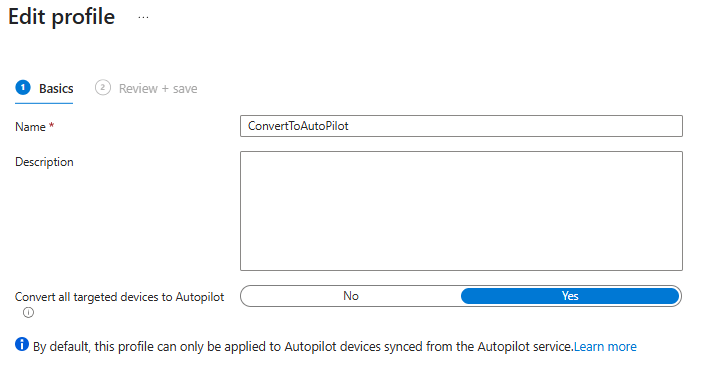
If you notice from the image it has a slider that says “Convert all targeted devices to Autopilot”. Well again why if you hover over the explanation you see the following.
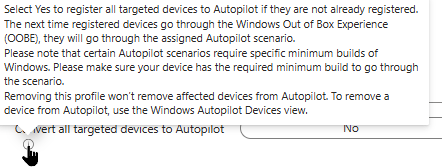
Now if you read it, it basically says that if they are not in Autopilot it will register them the next time they go through OOBE. So again how in the world does it use the profile if these are only for Autopilot devices. It is almost like a chicken and the egg scenario. Which one comes first, well I thought it needs to be in Autopilot to get this profile but this almost states that it will use it no matter what. Well I do not know if or what I figured out was the intention but if you use Graph to download the profiles you can force a device from OOBE to use what ever profile but that is piece two. That really is not the interesting part to me. If you create one and then apply that policy to a group of devices it will actually import them into your list of Autopiloted devices. I know it makes it sounds like this is not how it works but it will go ahead even before OOBE convert it to an Autopiloted device. I have tested in my own tenant already many times and I have done this in production environments also.
Now you are saying to yourself, why in the world am I still reading this, nothing ground breaking, no plan yet well here are my thoughts. With all this information this is what I would do to implement Windows 11 and get my devices into Autopilot.
Step 1: Create your Autopilot profile. If you have a naming convention and also have multiple locations might be a good idea to create a profile per building so then this is pretty well hands off. Might require you to have more than one image for deployment but to be honest, if you are just imaging a base OS its not that much space.
Step 2: Download the Deployment Profiles with graph
Step 3: Either setup a method to reinstall the OS PXE or USB
Step 4: Mount the images and put on their respective Deployment Profiles on the install.wim file.
Step 5: Reinstall the OS. The device will then pull the deployment profile specified in the install.wim and help with naming, but not the Autopilot Enrollment at the OOBE, but it will, eventually.
WHAT!!!!
I did find out in my testing if you do slide over to convert to Autopilot it will not convert them right then during the Deployment. So in order to get it converted to an Autopilot group that leads me to step 6
Step 6 Create a dynamic group. Create a group based on the naming convention. see example below
(device.displayName -startsWith “IN”)
Folks, one step I always do when I create dynamic groups is to test it using the validation rule
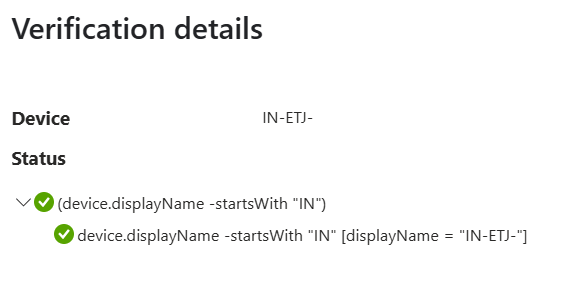
Now you have a system to reinstall the OS, push out the deployment profile you want and convert it or bring it into Autopilot. This was something of a journey for me and I learned and still learning a ton. Part of this, I know I mentioned it ,but I am doing all the my virtualization on QEMU, really learning new stuff. This seems to work well and can help you in the future.
Other items you could do for long term device life cycle
Create dynamic groups for you locations or what ever groups needed based on your naming convention
Assign that deployment profile to that group so that next time you reset it, it will pick up that deployment profile with the correct naming convention.
Long story, I know, but I hope you find this information useful as always keep learning.
 Ed_Tech_Jeff