Last article we exported an image for Windows 11 Enterprise. I want to discuss something that is always a pain, drivers. One particular driver is really a pain and one in particular is the Intel Rapid Storage Technology Driver or RST. There is a default setting for the storage controller on Dell devices. I am not sure its on other manufacturers but on Dell I have seen this as the default. If you do not load the RST drivers then you will have to change the storage driver to AHCI, but what fun is that. Let’s get the RAID driver as part of the deployment of Windows.
Lets first mount the Enterprise.wim.
Dism /Mount-Image /ImageFile:c:\images\images\enterprise.wim /index:1 /MountDir:”C:\images\mount”
Let me explain one thing, in our previous post the /index number was 3 and notice that its 1. Because we exported the image the only index number for it is 1, the rest is the same.

Now we need to import the drivers. Here is the following command to import the drivers
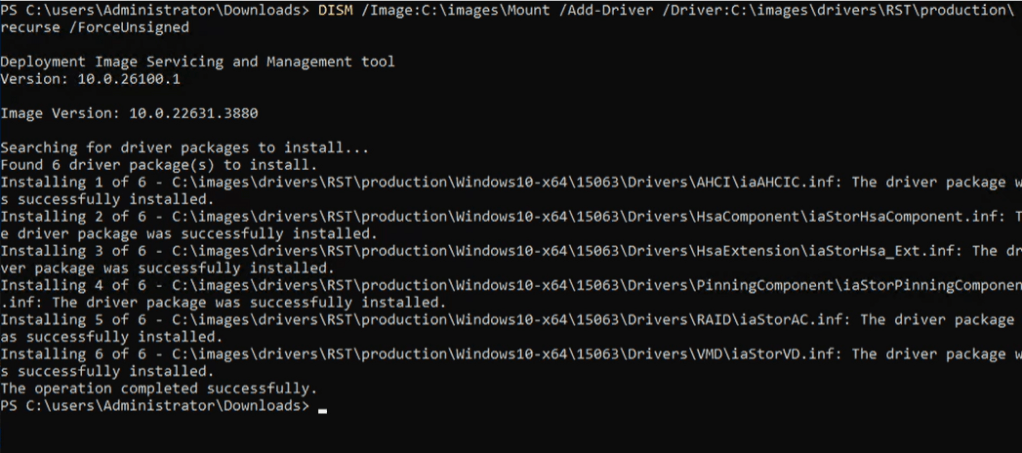
DISM /Image:C:\images\Mount /Add-Driver /Driver:C:\images\drivers\RST\production\ /recurse /ForceUnsigned
As you can see the commands completes
But wait is more. Not only do you have to worry about this when it comes to deploying the image, how about if you try the troubleshooting tools built into Windows and want to do a reset. You also need to load the RST drivers to the Winre.wim image that is actually in a sub directory on the mounted WIM. The WIM is located in c:\images\mount\Windows\System32\Recovery\Winre.wim. Running the above command but pointing it to the other WIM will add the RST drivers to it.
First you must mount that one also. What I suggest is to create a folder in c:\images folder called WinREMount.
Dism /Mount-Image /ImageFile:c:\images\mount\Windows\System32\Recovery\Winre.wim /index:1 /MountDir:”C:\images\WinREMount”

DISM /Image:C:\images\WinREMount /Add-Driver /Driver:C:\images\drivers\RST\production\ /recurse /ForceUnsigned

I would also suggest to load the WinPE driver pack also. I am currently working with Dell computers so I just grabbed it from them.
DISM /Image:C:\images\WinREMount /Add-Driver /Driver:C:\images\drivers\WinPE\ /recurse /ForceUnsigned
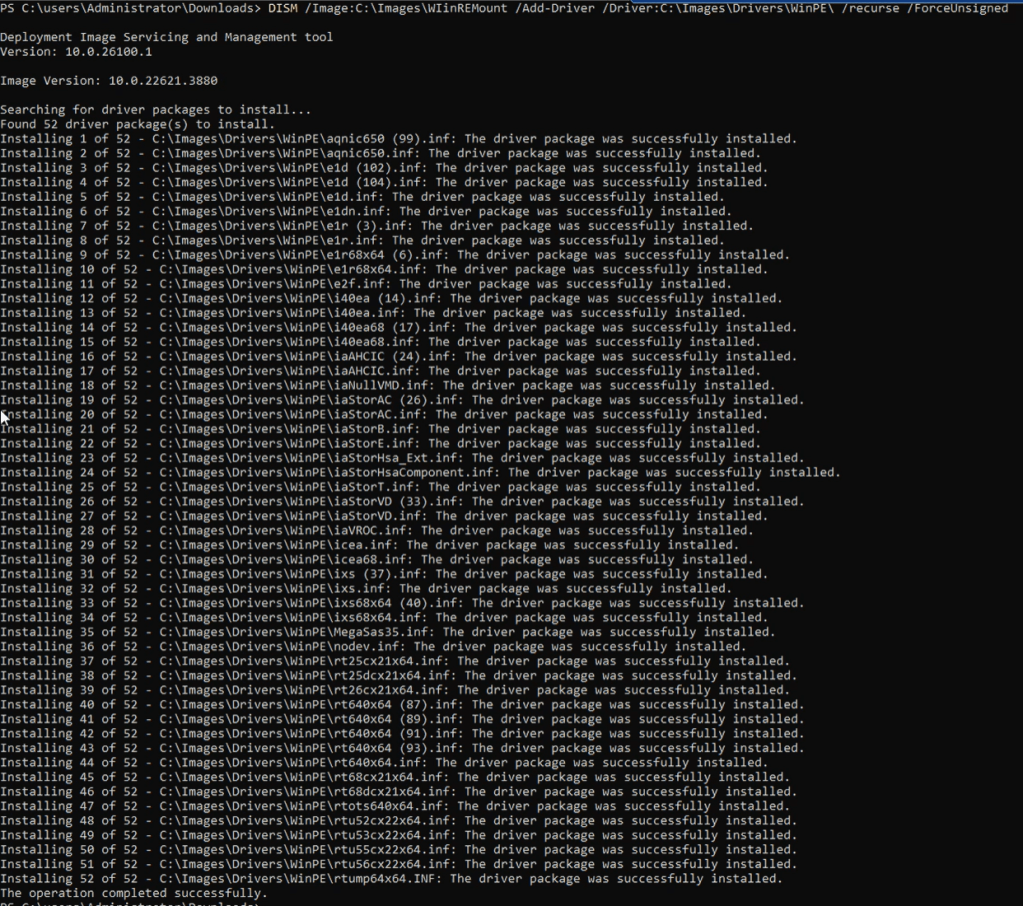
Make sure you unmount them both, and unmount the WINRE first
Dism /Unmount-Image /MountDir:”C:\images\WinREMount” /commit
Dism /Unmount-Image /MountDir:”C:\images\Mount” /commit
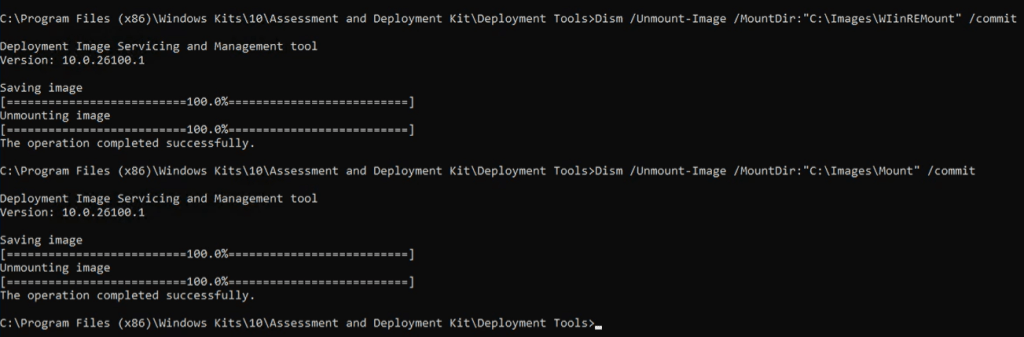
Now you have all the drivers you should need, but you can apply the same information to add specific drivers to your image.
This is very basic but will get you going using DISM. The next post I will cover how I going to use the stock scripts to Capture and deploy and image
 Ed_Tech_Jeff