Task Sequence – Custom Settings
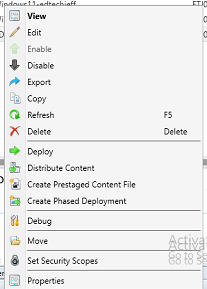
Now that you have created the task sequence we need to add some additional steps. Right click on the Task and click Edit.
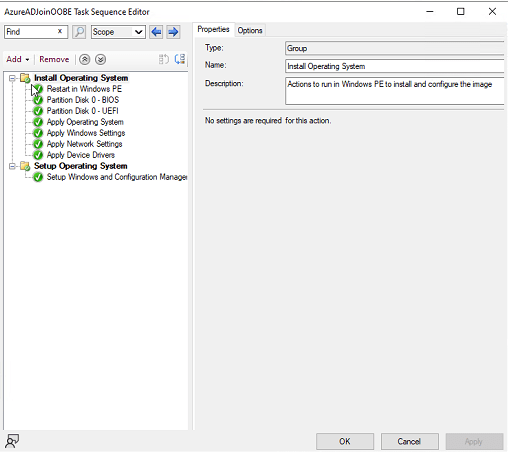
Next Click on Apply Operating System
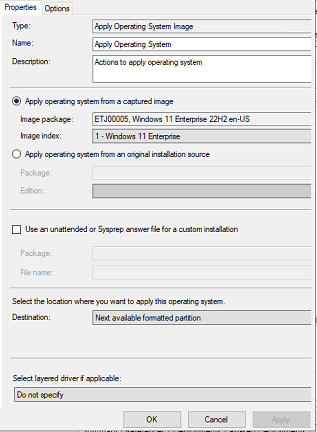
Click on the radio button that says
use an unattended or Sysprep answer file for a custom installation
Click Browse
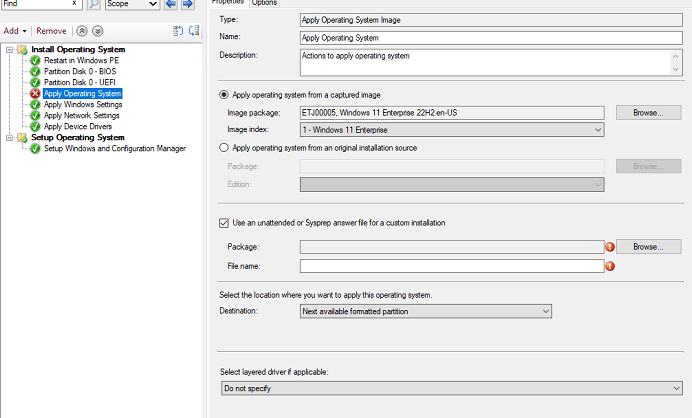
click on the UnattendXML Package that was created earlier
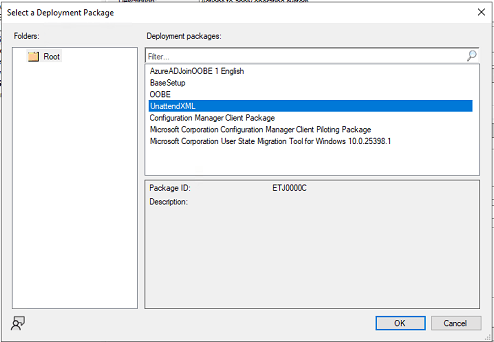
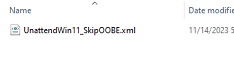
Just a quick look back at the package files you need to take note of the name of the file. Again these files located are in my package directory. Type in the name of the file in the filename box

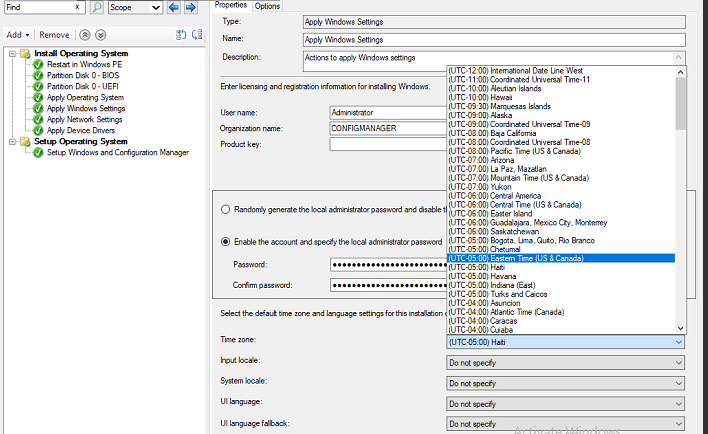
Next click on the Apply Windows settings. Again you can set it to create a new password for the admin account and disable the account or create the password and enable the account. Do what ever works best for your environment. I would also suggest to set the Time Zone.
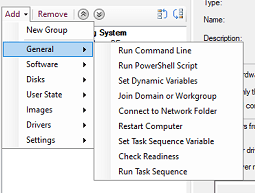
Now we need to add another step to the task sequence. This step is Set Task Sequence Variable. Its important that its added correctly so click on the section that says Apply Device Drivers, click on Add. Reason for doing this, it will put the step right after where we want it.
The name of the variable needs to be the following:
Name : SMSTSPostAction
Task Sequence Variable: SMSTSPostAction
Value: Powershell.exe -executionpolicy bypass -file c:windowsTempPrepareOOBE.ps1
If you want to understand more about the Task Sequence Variable here is a good article that explains and has even more you can look at.
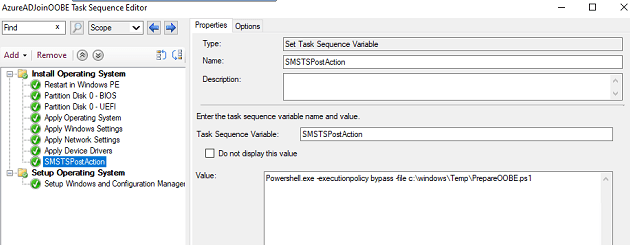
Next click on the line that says (Setup Windows and Configuration Manager)
Click add > General > Restart Computer.
This will add a restart computer after the download of the configuration manager client
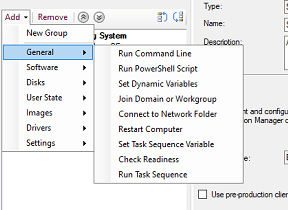
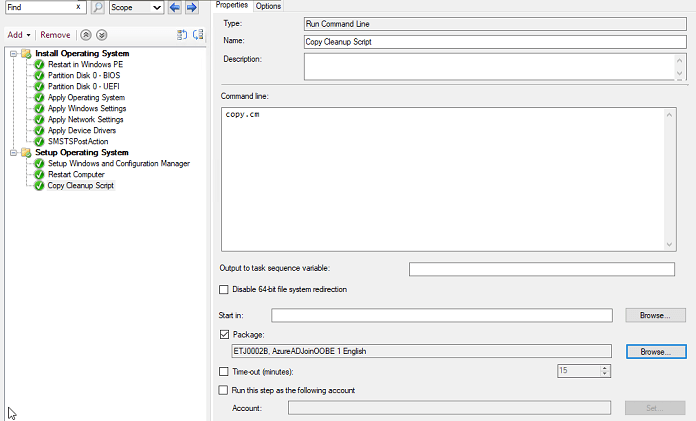
Next click on the Restart step and click on Add > General > Run Command Line
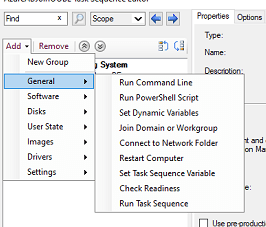
Settings:
Name: Copy Cleanup Script
Command Line: copy.cmd
(its the name of the file in the package that was created

On the same screen check the box next to Package and click browse
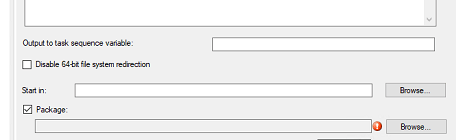
Select the Package that was created earlier and click OK
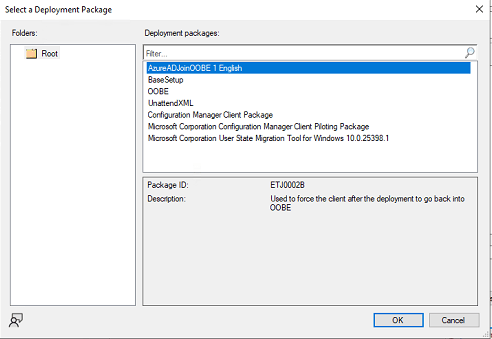
Click OK
next you will need to deploy the task sequence. Since these devices will only be imaged by Config Manager and not managed I only deploy this to Uknown Computers. I will cover that in the next blog
 Ed_Tech_Jeff
One thought on “Config Manager Imaging Part 3”