Task Sequence Setup
Now you have two packages created, one for the OOBE and one for the unattend file. Now lets create a task sequence.
Go into Software Library > Operating System > Task Sequences
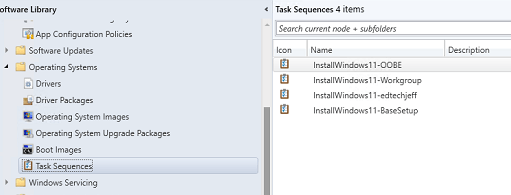
I would like to note you will need to import an OS image. Here is another of one of my favorite sites to go to if you do not know how.
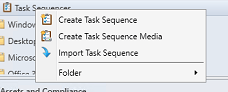
Right click Task Sequence and click create Task Sequence.
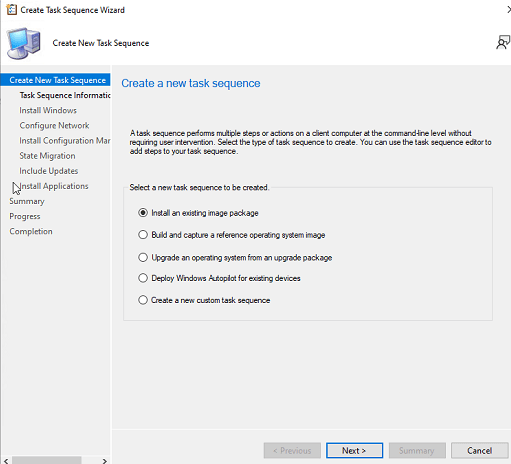
Click on the first radio button for (Install an existing image package)
Give it a name and also then click Browse.
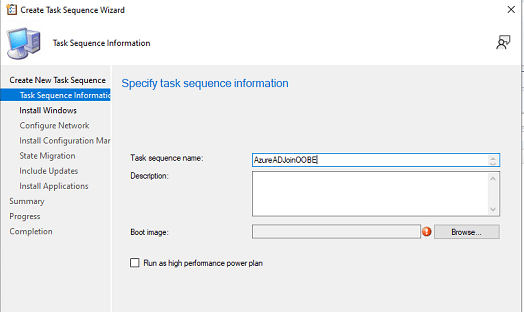
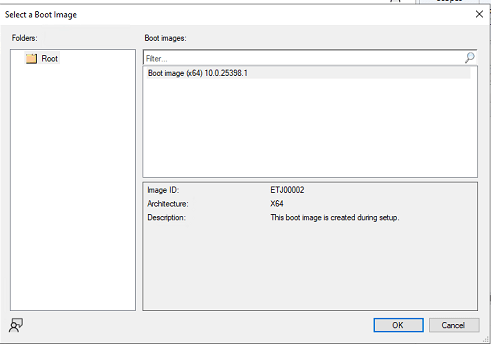
Highlight the boot image and click OK
Click Next
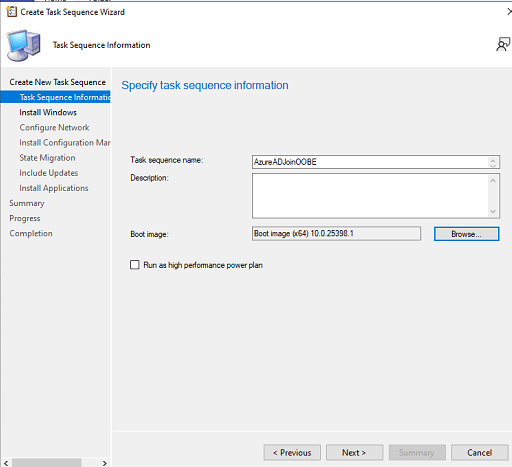
Click Browse to select the Windows version you want to install
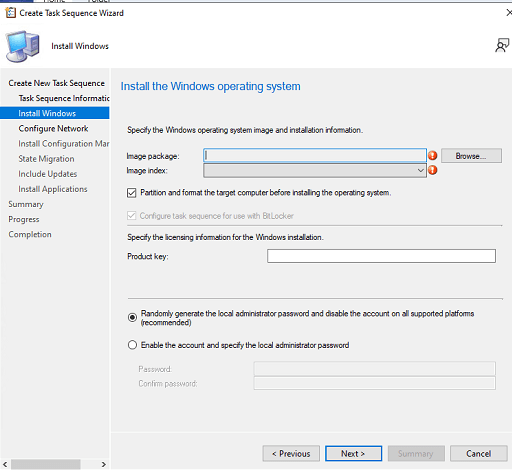
Select the OS, and click OK
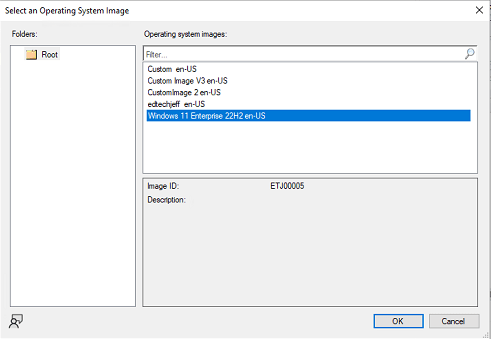
Now you have selected the Windows version to deploy. By default I do the following:
First Radio Button I leave
Un-check the BitLocker (Can enable this later)
Leave Radio button enabled to set an Administrators password and disable account
Click Next

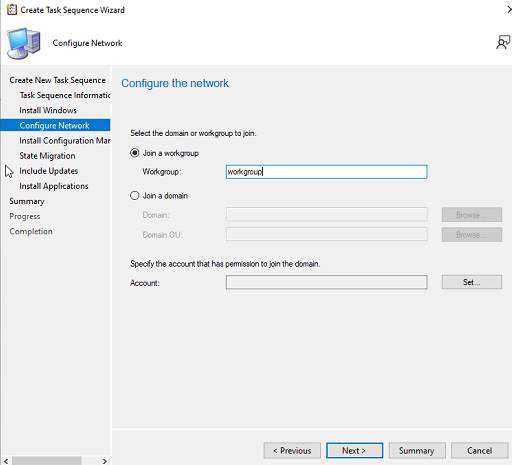
Leave it workgroup and type in a workgroup name
Click Next
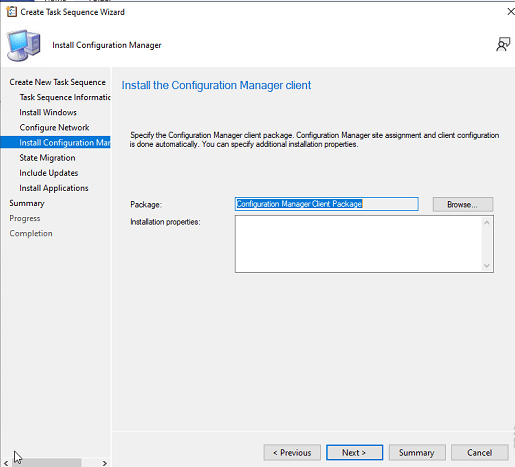
By default I do the following
(These are not needed due to the fact we are deploying. These settings are for migrations)
Uncheck – Capture user settings and files
Uncheck – Capture network settings
Uncheck – Capture Microsoft Windows Settings
Click Next

Click Next
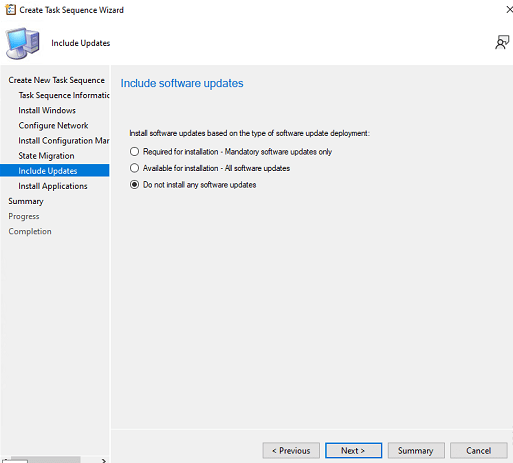
Click Next
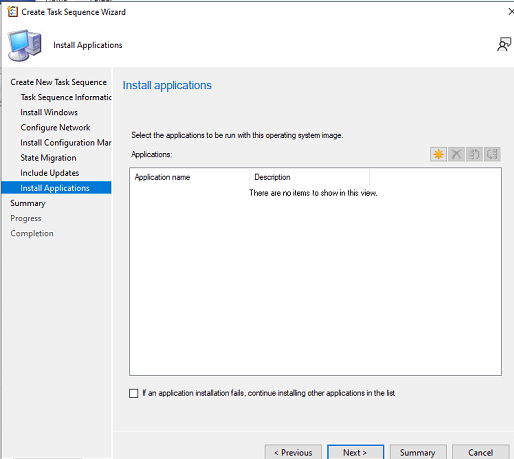
Click Next
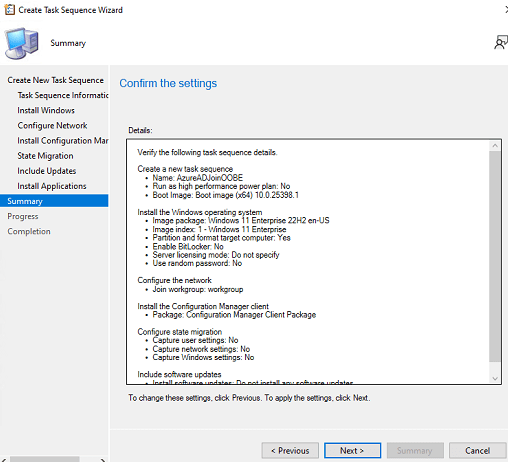
Click Close
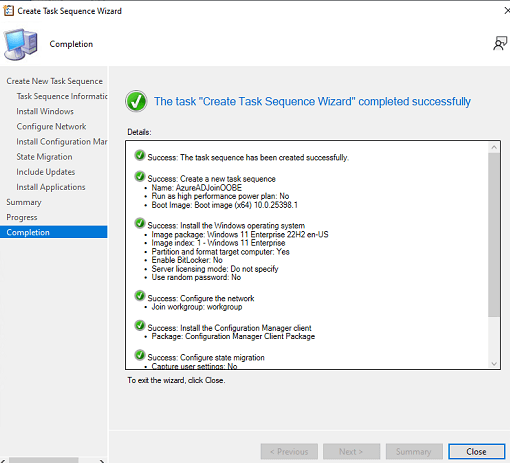
wow.. so many steps here, but worth it. Next post we will customize the task sequence to add some additional steps. Take a look here
 Ed_Tech_Jeff
One thought on “Config Manager Imaging Part 2”